Smart glasses with OpenClaw
| Section | Use cases |
| Time to complete | ~30 min |
| Model | muse-spark-1.3 |
| Harness | OpenClaw |
| Prerequisites | series setup(opens in new tab) |
Look at something, ask out loud, hear the answer — hands-free on Ray-Ban Meta glasses, powered by Meta's Model API.
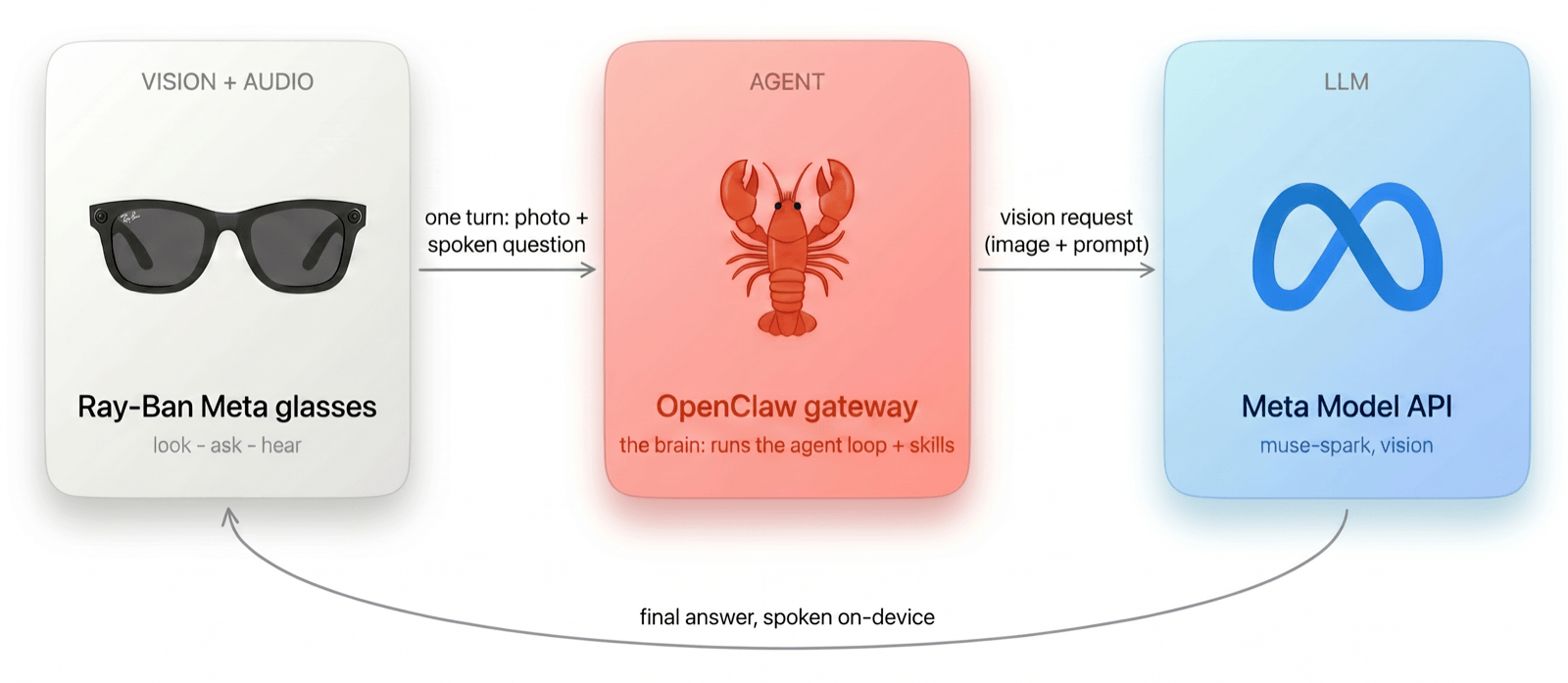
VisionClaw is a small iOS app that turns your glasses (or just your iPhone) into a see-and-ask assistant. You speak, it grabs one photo, and an OpenClaw(opens in new tab) gateway running a vision Meta model answers — then speaks the reply back. The app is intentionally thin: no model key, no tool code, no model client. It sends one request to your gateway.
What you can do
Put on your glasses, hold the talk button (or say "Hey Muse"), and ask:
- "What am I looking at?" — the Meta model sees your photo and describes the scene
- "Translate this sign." — read and translate text in front of you
- "What can I make with these?" — reason over what's in view
- …and anything your gateway's skills can do — the brain lives in OpenClaw, not the app
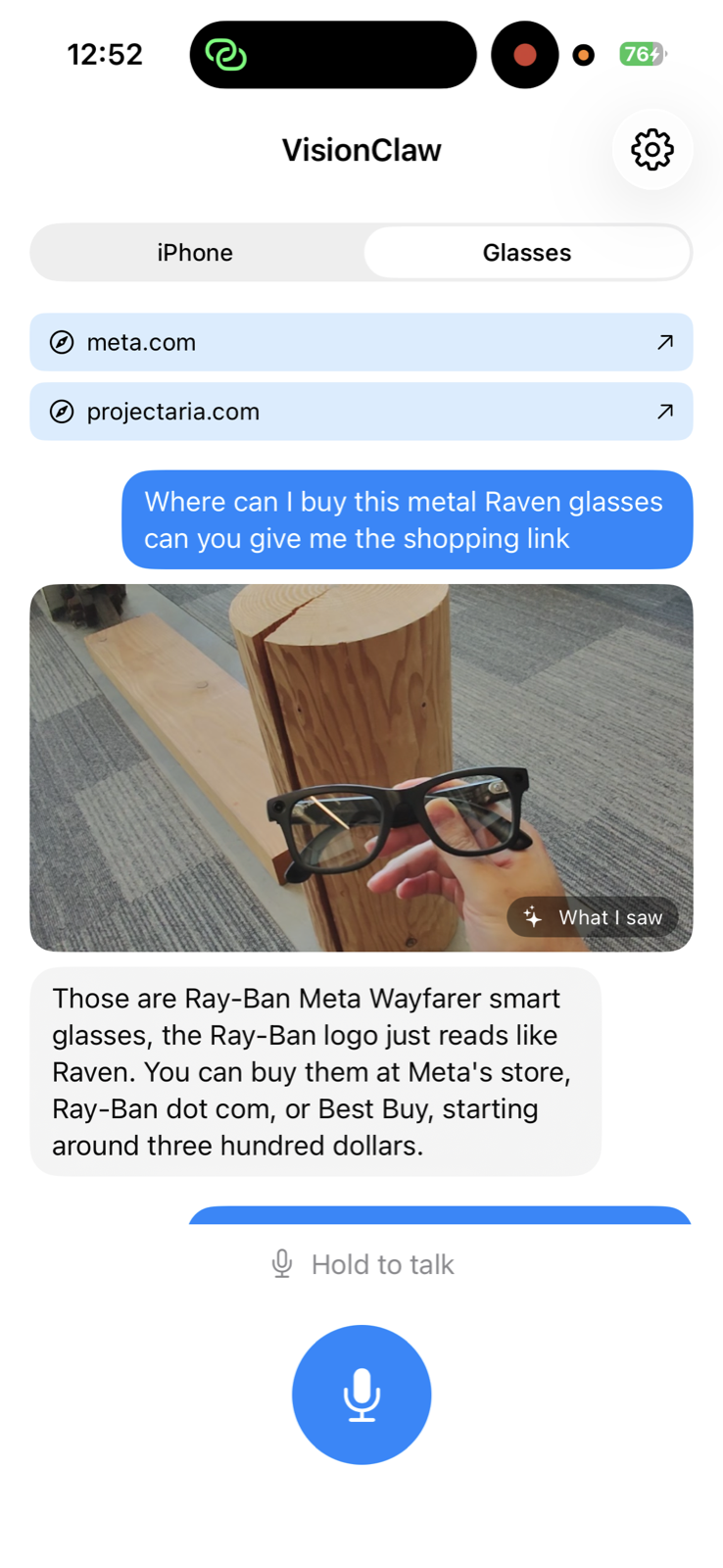
Glasses mode: the user asks for a shopping link for the Ray-Ban Meta glasses in view; the app shows the captured photo ("What I saw") and speaks the answer back. This screenshot is from an actual run; because the model is non-deterministic, your results may differ.
How it works
- Capture — one high-res JPEG from the glasses (or the iPhone camera).
- Listen — your question is transcribed on-device (
SFSpeechRecognizer). - Ask — the app sends one chat turn (text + image) to your gateway as
openclaw/default. No model key, no tools. - Think — the gateway runs its agent loop against Meta's Model API (
meta/muse-spark-1.3, vision) plus its skills, and returns final text. - Speak — the answer is spoken back on-device (
AVSpeechSynthesizer).
Quick start
1. Point OpenClaw at Muse Spark
OpenClaw ships built-in support for the Meta provider, and Muse Spark 1.1 is vision-capable — so there's no provider block to hand-write. Just make it your agent default and turn on the OpenAI-compatible endpoint (it's off by default) so the app can reach it. In ~/.openclaw/openclaw.json:
json5
Provide your Meta API key (from the Model API dashboard under API keys → Create API key) and a gateway token, restart, and smoke-test:
bash
2. Build the app
bash
Requires Xcode 26.6 or later. Set GATEWAY_HOST to your Mac's .local name (or LAN IP), GATEWAY_PORT to 18789, and GATEWAY_TOKEN to your OPENCLAW_GATEWAY_TOKEN. All three are also editable at runtime in the app's Settings.
3. Try it
- iPhone mode (fastest, no glasses) — run on a real device, grant camera/mic/speech, point at something, hold the talk button, and ask "What am I looking at?"
- Glasses mode — see "Connect your Ray-Ban Meta glasses" below, then ask exactly as above.
Connect your Ray-Ban Meta glasses
Glasses mode uses the Meta Wearables Device Access Toolkit(opens in new tab), which pairs through the Meta AI app.
- Install the Meta AI app and pair your Ray-Ban Meta glasses with it (this is what links your phone to the glasses).
- Enable Developer Mode in the Meta AI app: Settings ▸ App Info, then tap the App version number 5 times. A Developer Mode toggle appears — turn it on. (Re-enable it after any firmware update.)
- Grant camera access. In VisionClaw, open the Glasses tab (or tap Register glasses). The app hands off to the Meta AI app, which asks "Allow VisionClaw to access the camera on your Meta devices?" — choose Always allow and tap Confirm.
- Verify the connection in VisionClaw's Settings ▸ Test glasses connection. You should see Glasses ready, Registration: registered, and your device (e.g.
Ray-Ban Meta 01MV) marked connected. The glasses must show as connected here before the camera session can start.
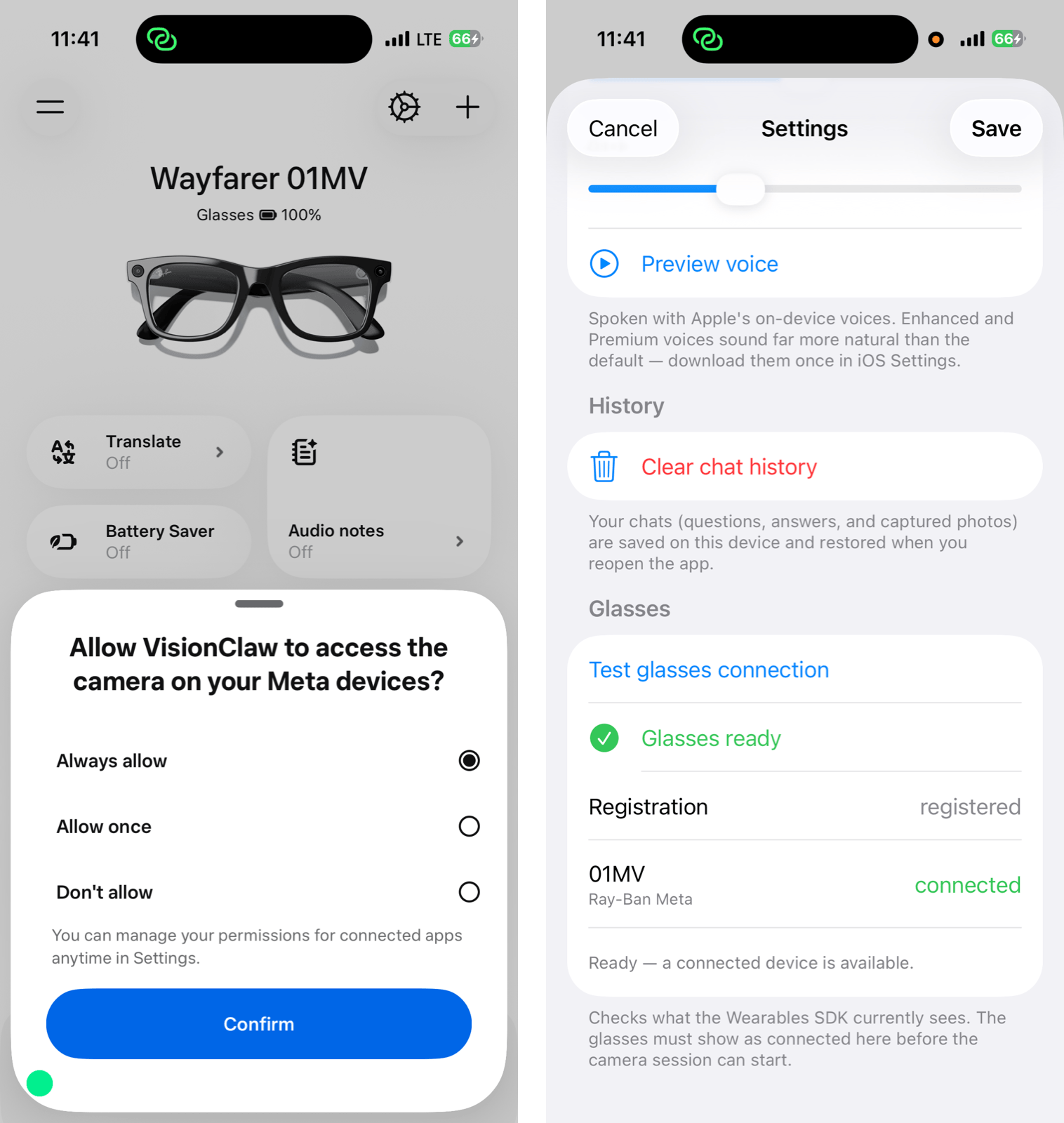
Left: grant camera access in the Meta AI app · Right: confirm the connection in VisionClaw Settings.
Why the app stays thin
model: "openclaw/default"targets an agent, not a provider model — the gateway resolves the real model (meta/muse-spark-1.3) from its config.- No
toolsarray is ever sent — the gateway runs its skills internally and returns finished text. - Model choice, skills, and safety all live in one place you control: the gateway.
Learn more
- Source — the app lives in
app/(opens in new tab); the one gateway call is inapp/Sources/VisionClaw/Gateway/OpenClawClient.swift, and on-demand glasses capture is inapp/Sources/VisionClaw/Glasses/GlassesFrameSource.swift.