Ground image generation with web search
| Section | Muse Image |
| Time to complete | ~20 min |
| Model | muse-image-1.0 |
| Language | Python |
| Prerequisites | Python 3.10+, the openai package, and a MODEL_API_KEY (create one in the Model API dashboard). |
Use this pattern when an image should reflect current products or styles. Muse Image can use web search before rendering. The API does not return the search results, so verify product names, availability, and visual details independently. This recipe renders an outdoor furniture set and places it in a deck photo.
Images throughout are from an actual run; because the model is non-deterministic, your results will differ.
What you build
- Research and render the set: a Muse Image conversation whose prompt asks the model to search the web for currently available outdoor seating that matches a brief, then render the pieces it finds as a product grid, one cell per piece.
- Compose into the backyard: continue the same conversation, attach a photo of the empty deck, and place the pieces onto it as one lounge grouping.
- Refine with another search: a chained turn that searches the web again for a matching coffee table and adds it into the centre.
How it works
Use the Responses API for both steps. Muse Image can use web search before rendering, but the API does not return the search results. Verify product names, availability, and visual details independently.
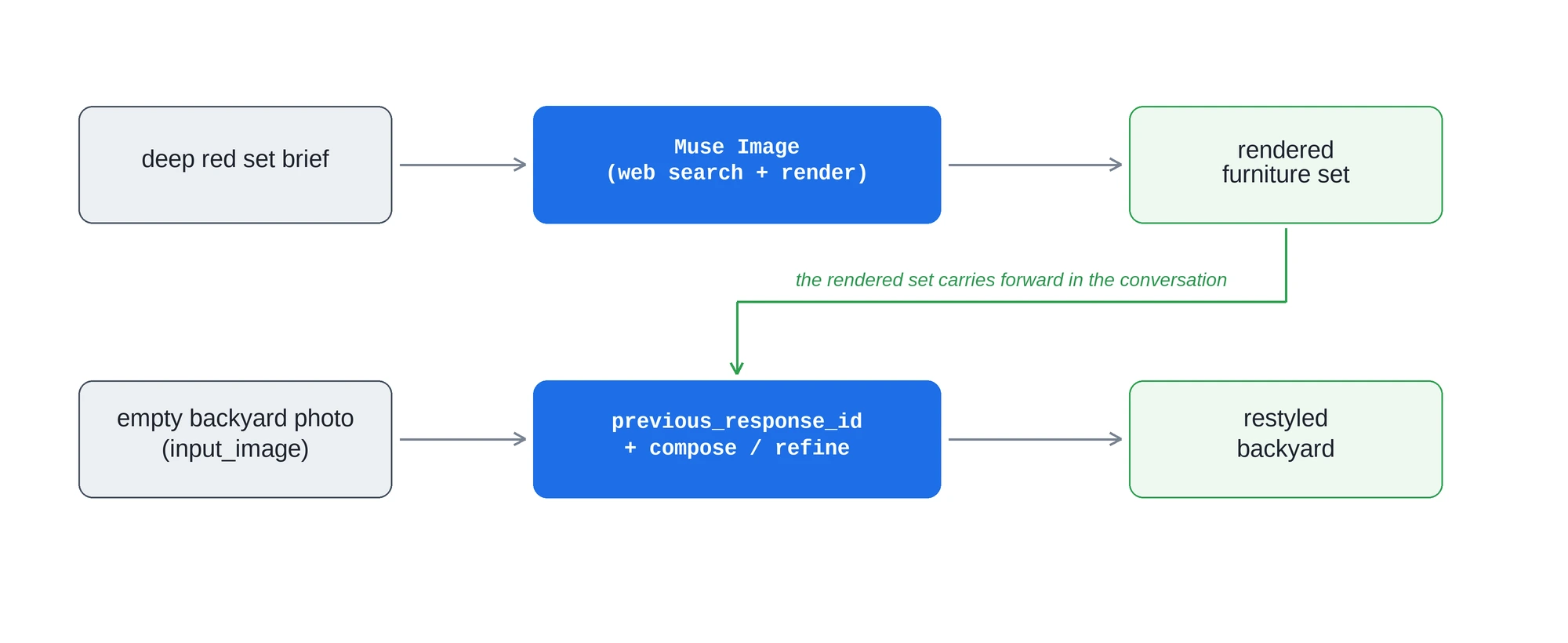
Each client.responses.create() call returns a response you can build on: pass its id back as previous_response_id and the next turn continues from the image you already have. This makes the whole recipe one conversation. You research and render the set on turn 1, then keep building on it: the set you rendered stays in the conversation, so when you compose it onto the deck you only attach the new backyard photo, and when you refine you just ask for the next change.
Setup
Install the dependency and set your key:
bash
Wire up the client. The OpenAI SDK does not auto-read MODEL_API_KEY, so pass it explicitly. Muse Image returns each generated image as base64 on an image_generation_call item in the response output list, so add two small helpers, one to pull that image out of a response and one to save it, plus one to turn a local file into a data URL for input_image:
python
Research and render the set
The first turn is text-to-image with a twist: the prompt asks Muse Image to search the web before it renders. Describe the space and the kind of set you want, ask the model to find furniture that is actually sold today so it gets the frame material, cushion style, and colour right, then have it lay the pieces out as a product grid, one cell per piece on a plain white background, rather than a single styled room scene. Showing each piece on its own keeps it faithful, so it does not get reinterpreted when you compose the scene later. Keep the brief specific enough to be unambiguous, the setting, the pieces, and the colour, so the research returns coordinated options rather than a scattered mix.
python
image_from pulls the rendered image off the image_generation_call item. Keep the response id: the rest of the recipe builds on it.
The product grid, each piece shown on its own so it stays faithful when composed:
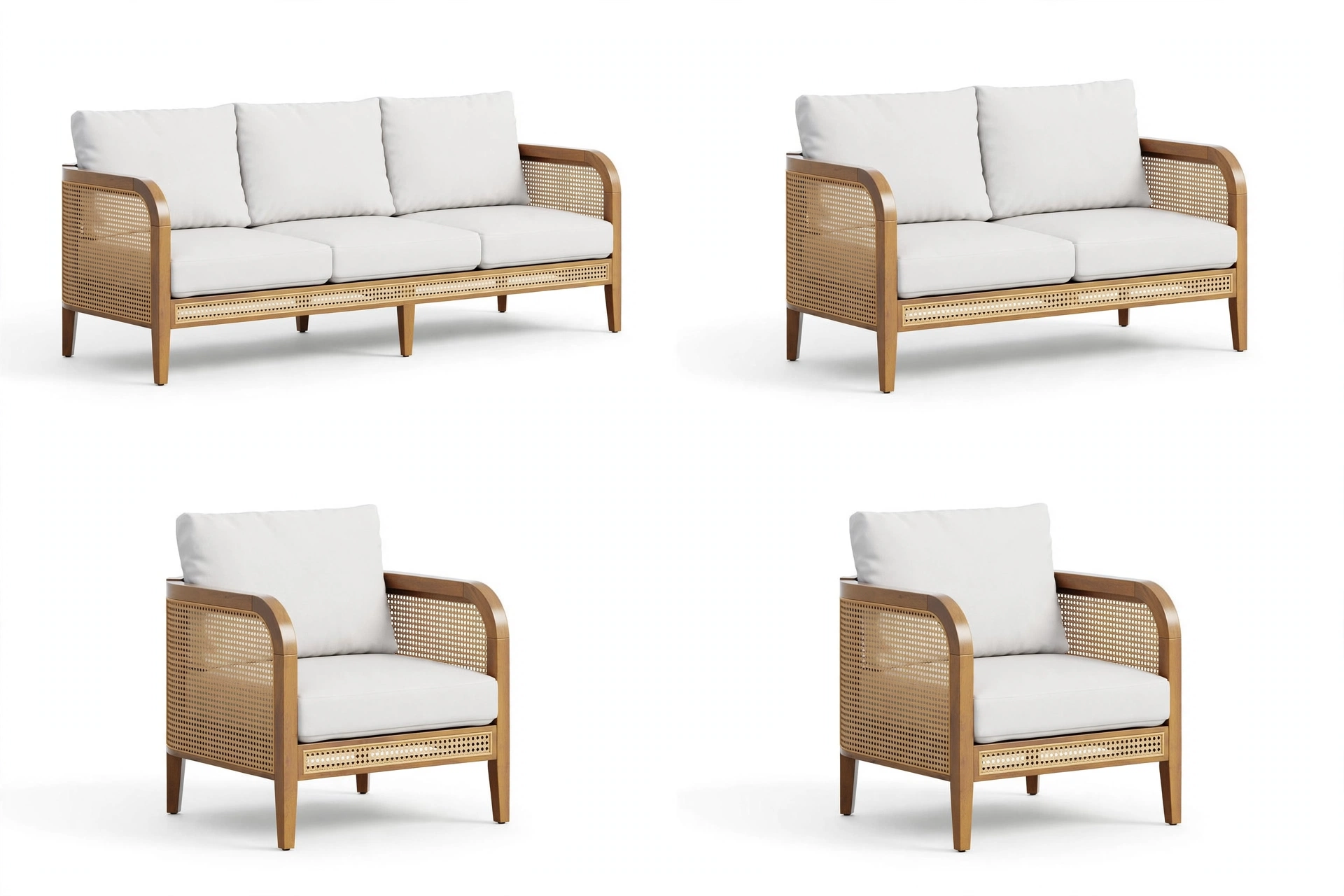
The brief is what makes the grounding useful, so make the query unambiguous. To pin the set to a specific product instead of letting the model choose, name it directly in the prompt, by manufacturer and product name or SKU, or by a product-page URL, for example "the [product name] (SKU 00000) from [retailer].com."
Compose into the backyard
The grid you just rendered is already in the conversation, so composing it onto the deck is one more chained turn. Pass previous_response_id=set_turn.id and attach only the new image, the empty deck; the pieces carry forward, so you do not resend them. Keep the prompt minimal: ask for the items from the product grid, placed onto the deck as one lounge grouping, and tell the model to leave the backyard itself unchanged. Given room on the deck, the model groups the pieces around an open centre on its own.
Start with the empty deck, and end with the pieces arranged on it:
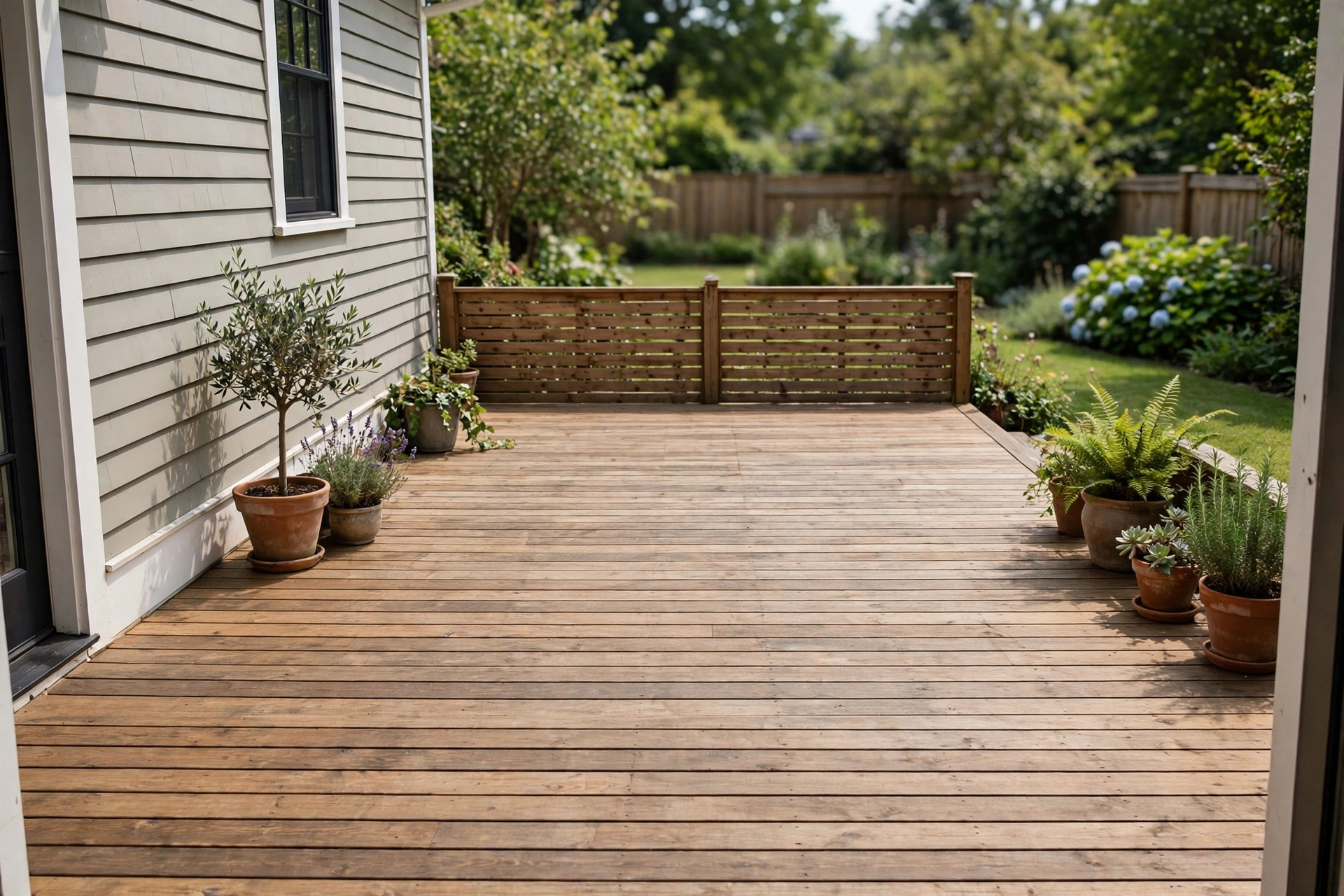
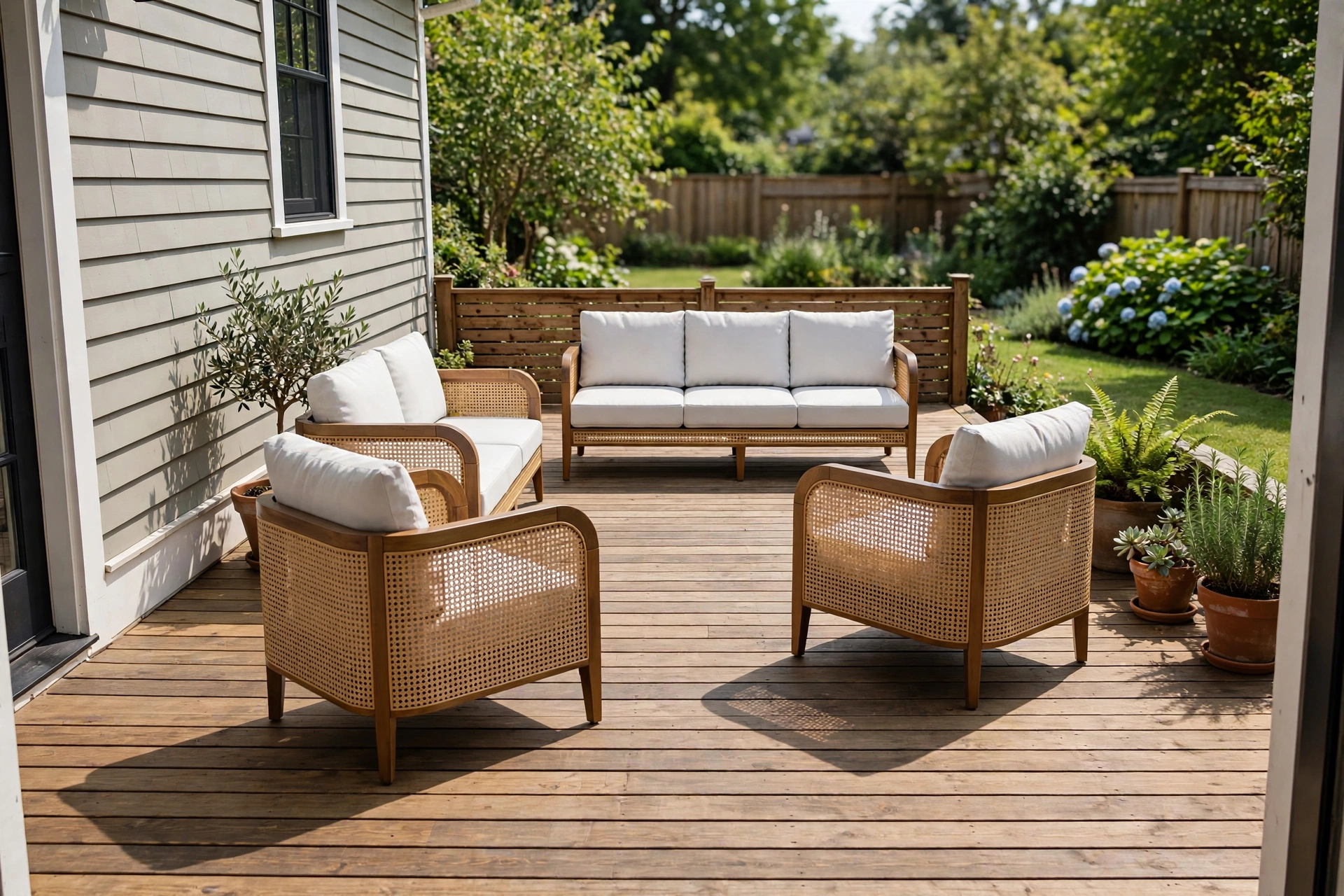
Attach the deck as an input_image part with a base64 data URL (a public image URL works too):
python
Refine with another search
Refinement is just another turn in the conversation, and it can search the web too. Here the follow-up looks up a matching coffee table and adds it into the open centre of the arrangement. Pass the compose turn's id and send only the new instruction; the scene carries forward, so you do not re-attach anything. Keep the prompt minimal and repeat the guard to leave the backyard untouched, so the refine adds the table without redrawing the deck or moving the furniture:
python
The restyled backyard: the sofa sits against the fence, the loveseat and two armchairs round out the grouping, and a matching coffee table anchors the middle, so the whole set reads as one lounge area under the deck's own light.
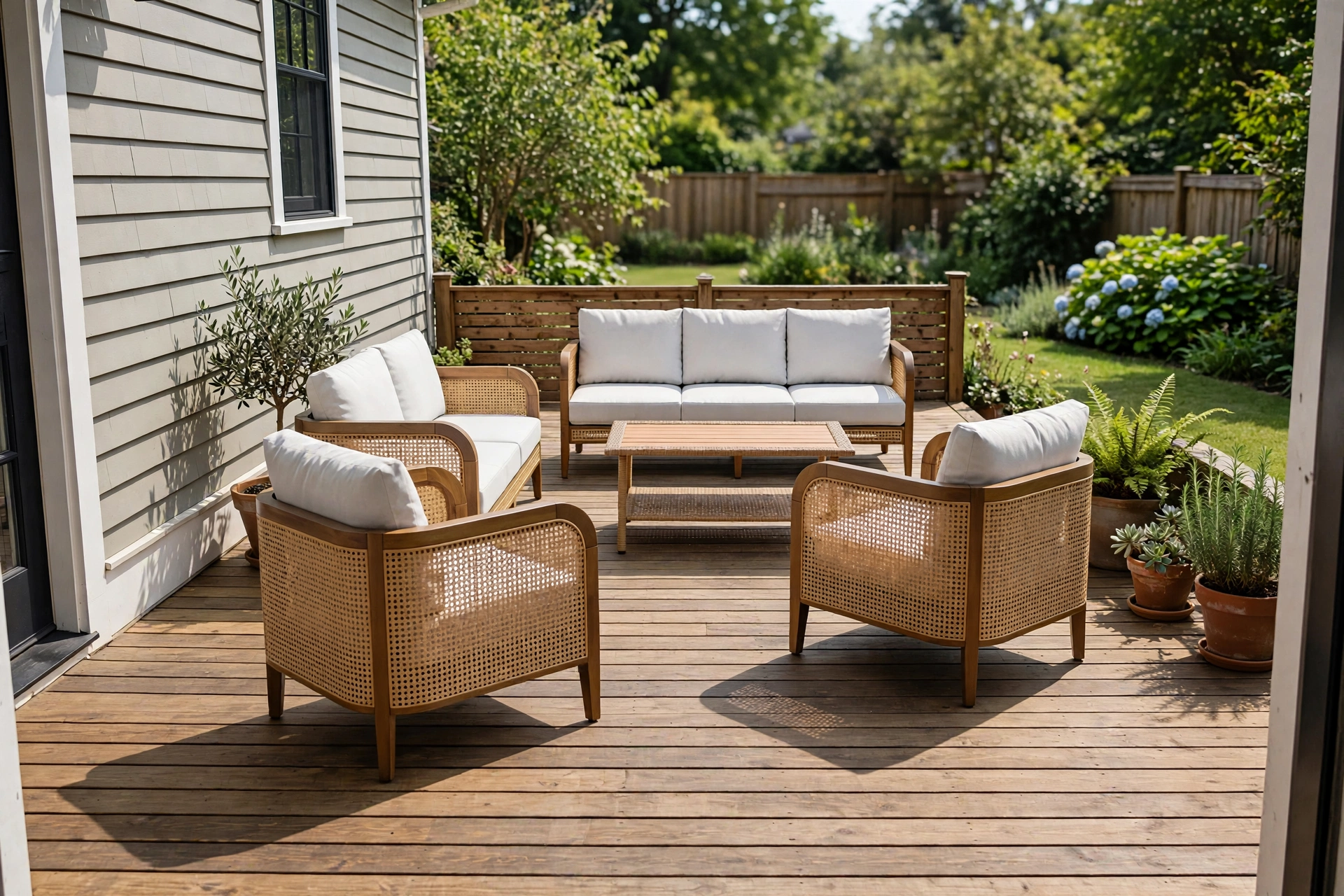
Because each refine turn builds on the scene already in the conversation, you steer it without re-attaching the reference images, and the model can search again whenever a new piece needs to be grounded in a real product.
Check the result
Confirm that the composition matches the requested layout. Verify product names, availability, and visual details against the source pages.
| Task | Call |
|---|---|
| Research and render the set | client.responses.create(model="muse-image-1.0", input="Search the web for ... then render ...") |
| Compose onto the backyard | client.responses.create(model="muse-image-1.0", previous_response_id=set_turn.id, input=[... input_image ...]) |
| Refine with another search | client.responses.create(model="muse-image-1.0", previous_response_id=compose_turn.id, input="Search the web for ... then add ...") |
| Read the image | base64.b64decode(image_from(response)) |
Production checklist:
- Read
MODEL_API_KEYfrom the environment, never hard-code it. - Make the query unambiguous: describe the setting and the exact pieces, or name a specific product by manufacturer, SKU, or URL when you want a particular item.
- Keep each response
idand pass it asprevious_response_id; the rendered image carries forward, so attach only genuinely new images and send only the new instruction. - When you attach a new reference, name it in the prompt so the model knows what it is and what to do with it.
Next steps
- Reference the image guide: the Image generation guide covers reference-image steering and the full parameter set.
- See the Responses API: the Responses API guide covers
previous_response_id,input_imageparts, and theoutputitem types. - Start with the basics: the Muse Image basics recipe covers generate, edit, and compose from scratch.